My name is Otto Kokstein, and I am a student in the Czech Republic with the goal of studying nuclear engineering in the future.
My areas of interest include programming, software developent, 3D modelling and 3D printing.
I started learning Python in 2022 and since then, I have also picked up some basic Java, TypeScript and Rust.
I am currently working as a freelance software developer.
I also have a Youtube channel where I post videos about my projects.
Links:
Contact
Feel free to contact me on my email address:

(Pro českou verzi textu viz článek Česká lokalizace modu Enderal.)
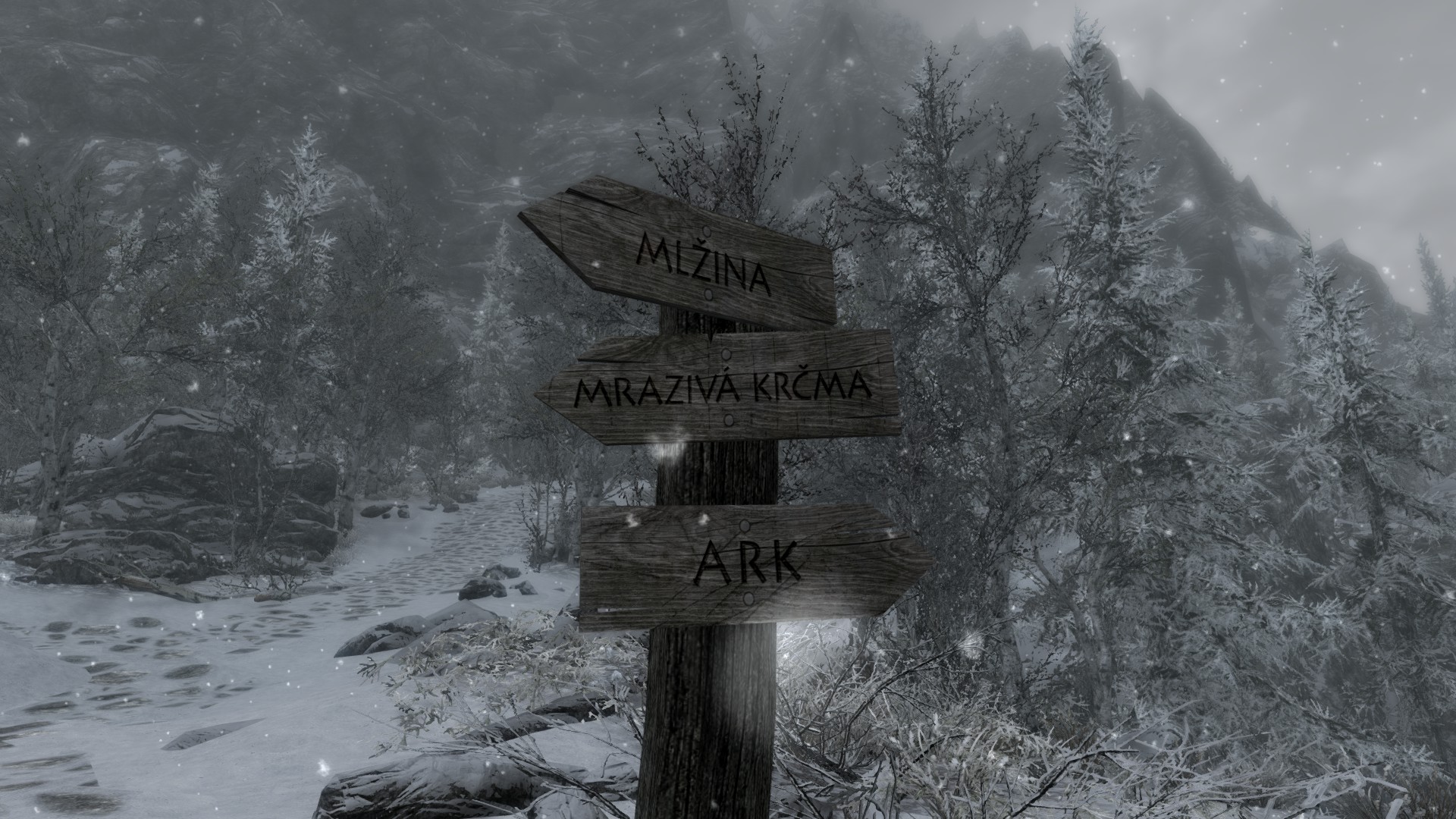
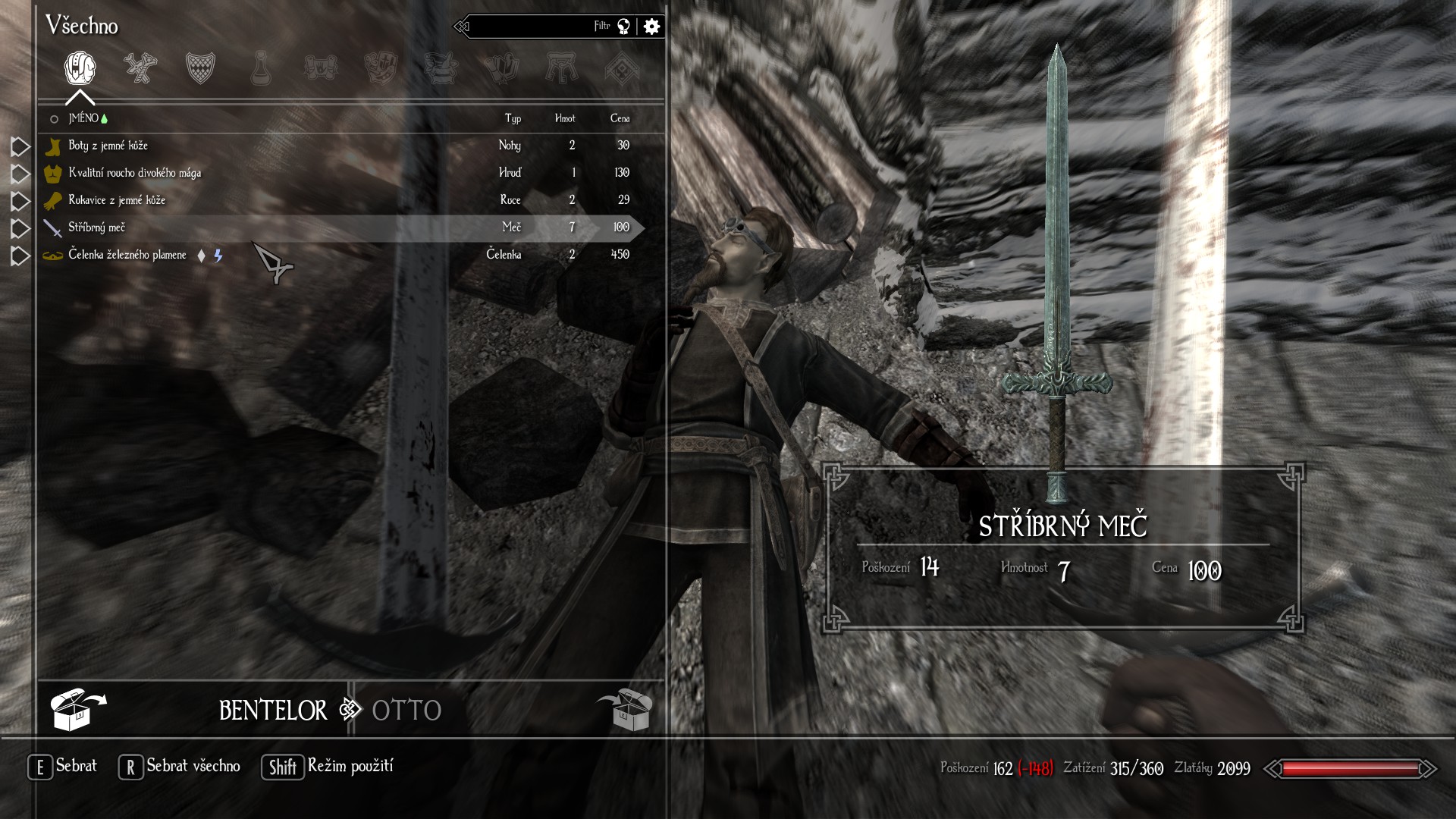
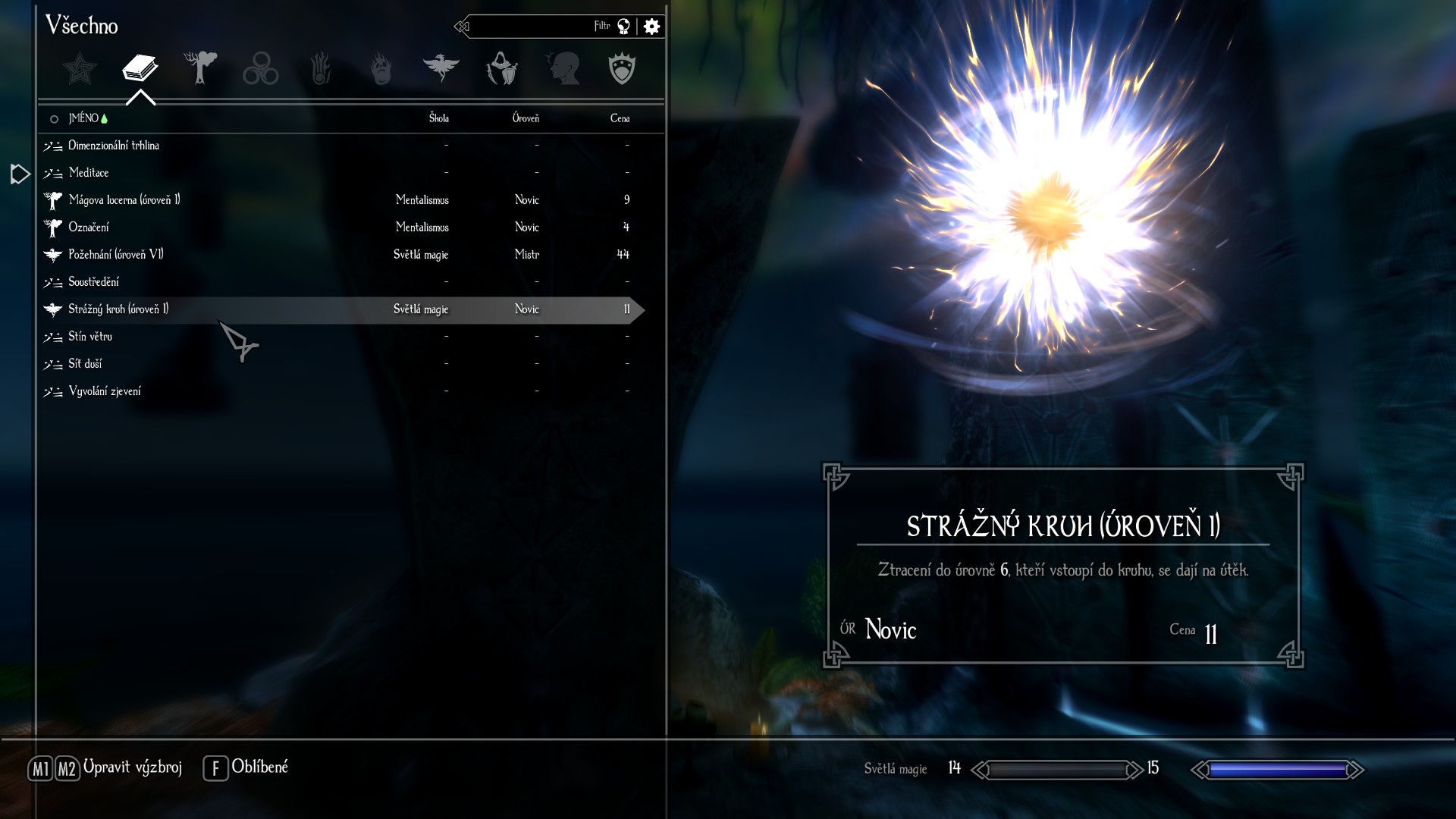
Enderal: Forgotten Stories (formerly Enderal: Shards of Order) is a Skyrim modification often considered a stand-alone game due to its sheer quality and scale. Between 2020 and 2025, I localized1 Enderal into Czech, including both the original version and the fan-made port for Skyrim Special Edition.
Content
What is localized
Almost every in-game text, for example:
- Names of items, spells, locations, quests and NPCs
- Dialogues (in the form of subtitles)
- Quest objectives and journal entries
- Most books
- Texts in textures
- Menus and settings
- Cinematics (in the form of subtitles)
- System messages
What isn't localized
- Game launcher
- Audio
- "The Butcher of Ark" book series
Note: If you choose to play as a female character, the game will still address you as male, as I have not yet found a way to provide separate strings for male and female protagonists.
Motivation
Ever since first playing Enderal and discovering that it was missing a Czech localization, I knew it was something I wanted to pursue. My main motivation was to allow Czech players to enjoy its lore, story and ambience without any language barriers.
Process
Strings (in-game texts) were localized in xTranslator and textures edited in Photopea. Enderal's cinematics were localized by burning subtitles into them (I have posted a guide detailing the exact process I used, if you are interested).
More info about the process of localization itself can be found here.
Download
The localization can be downloaded on Nexus Mods, where I uploaded it with the developers’ permission. Nexus Mods is also ideal for reporting bugs and issues, so feel free to leave a message there if you encounter any problems.
Localization of the original Enderal (Classic Edition): https://www.nexusmods.com/enderal/mods/327
Localization of Enderal SE (Special Edition): https://www.nexusmods.com/enderalspecialedition/mods/996
Showcase
Video Showcase
Gallery
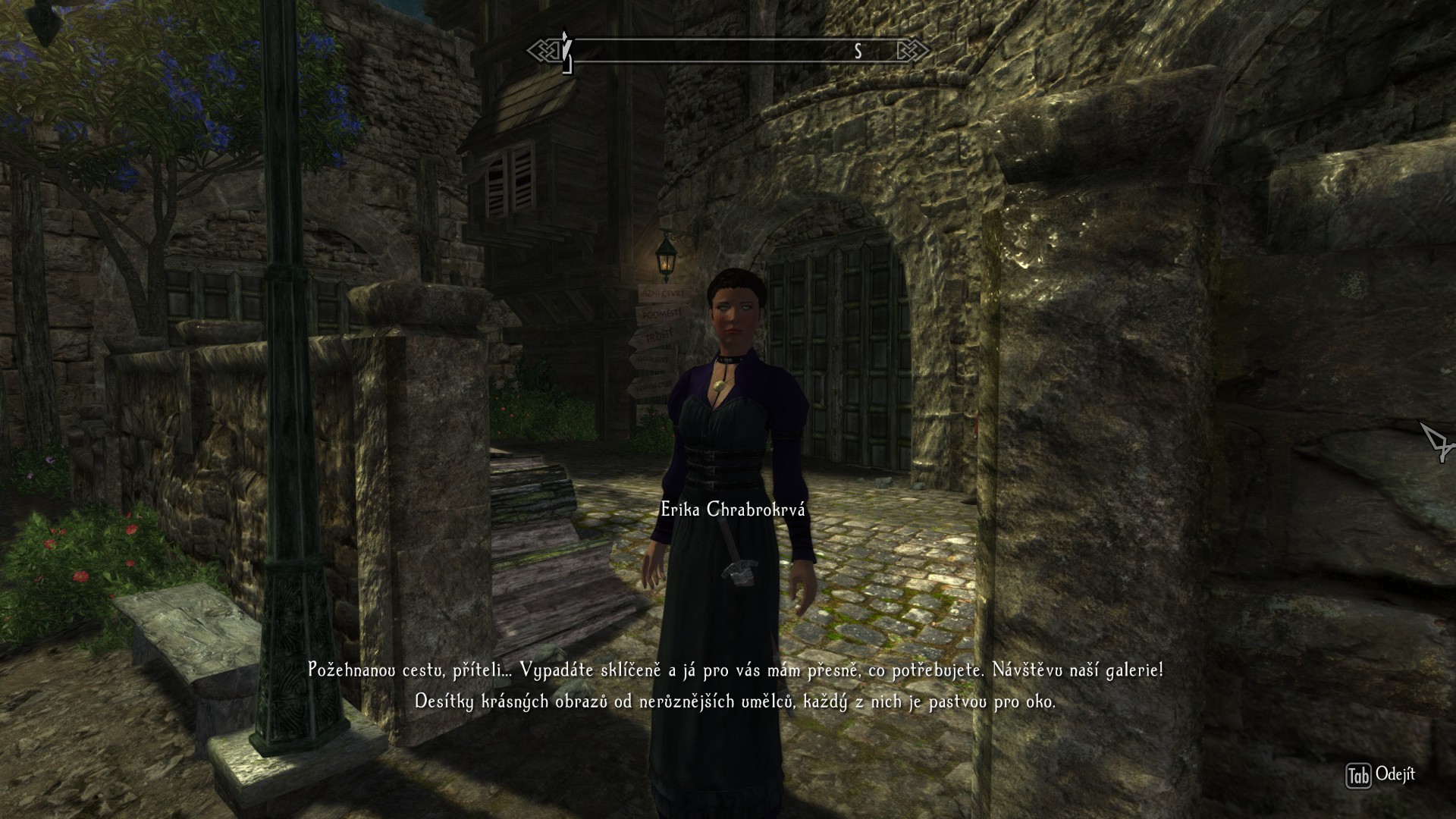
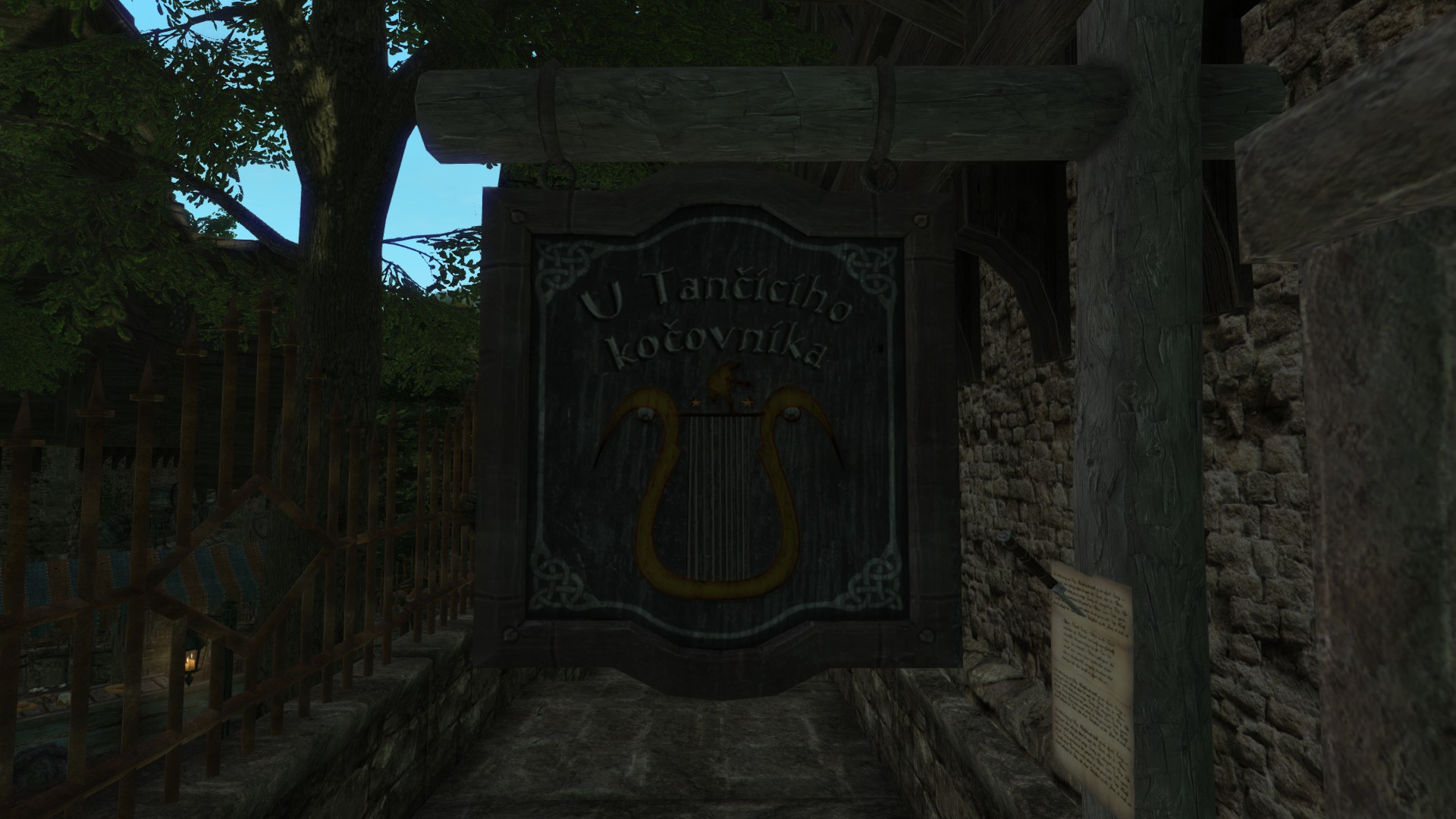
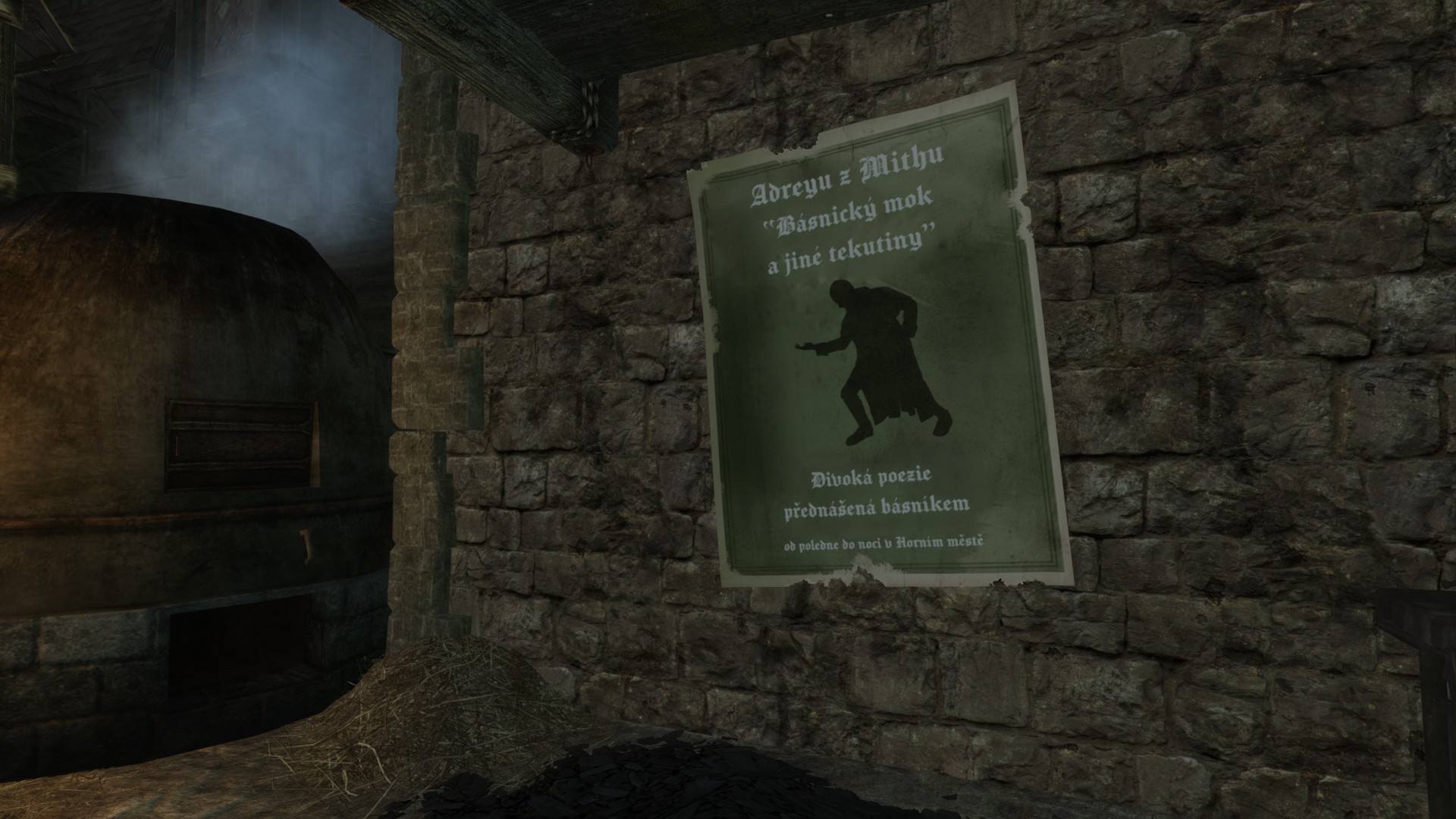
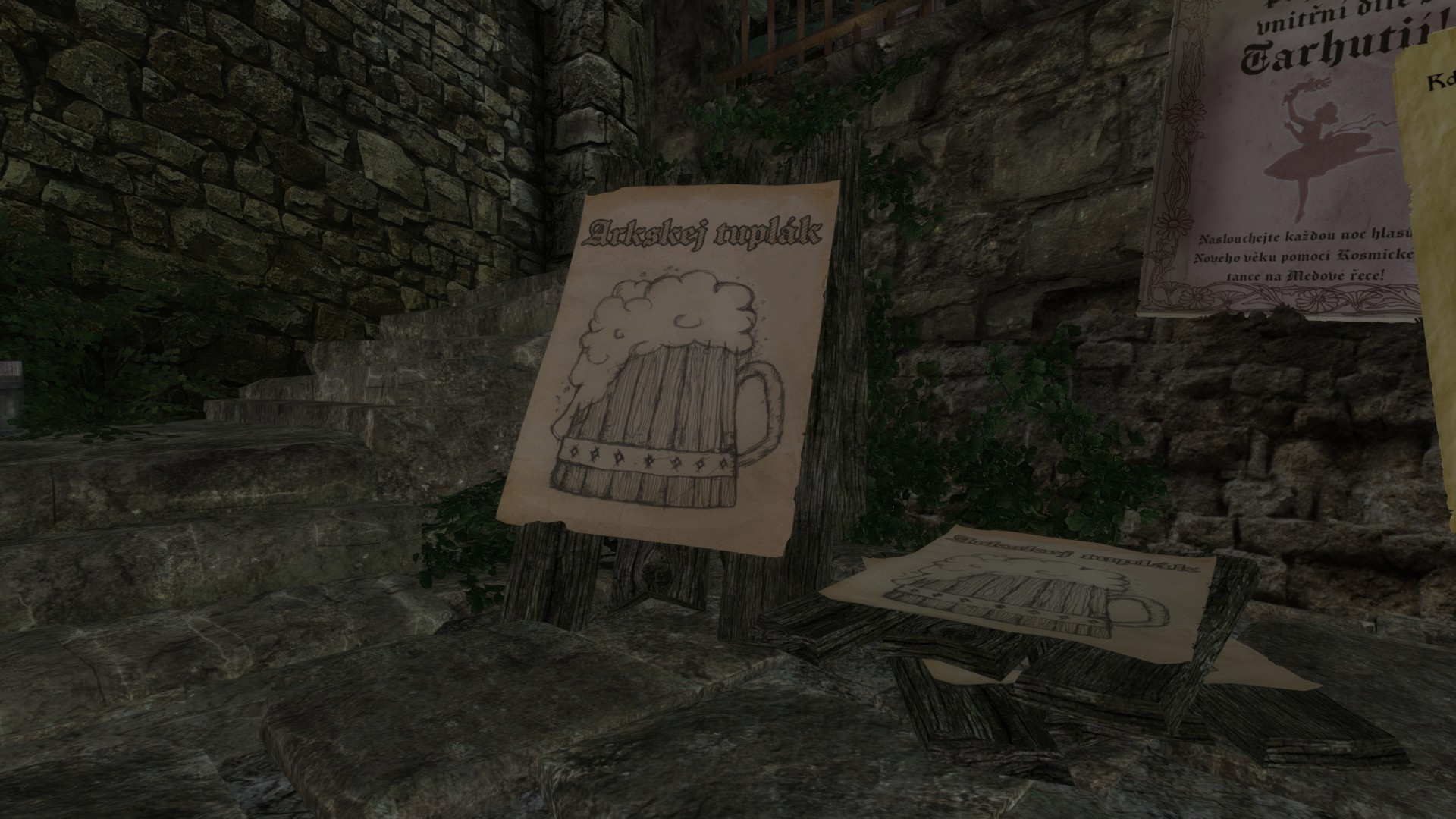
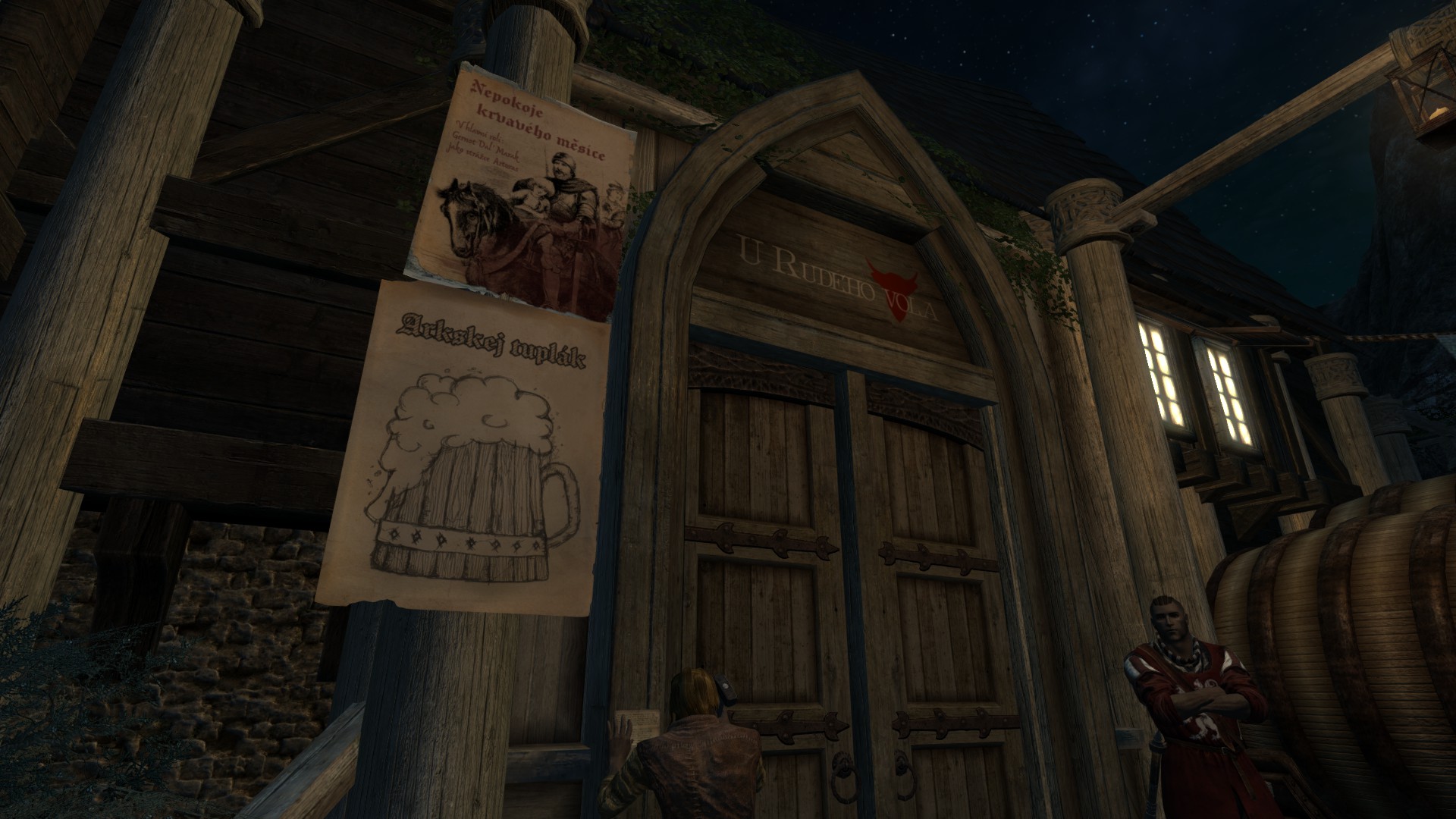
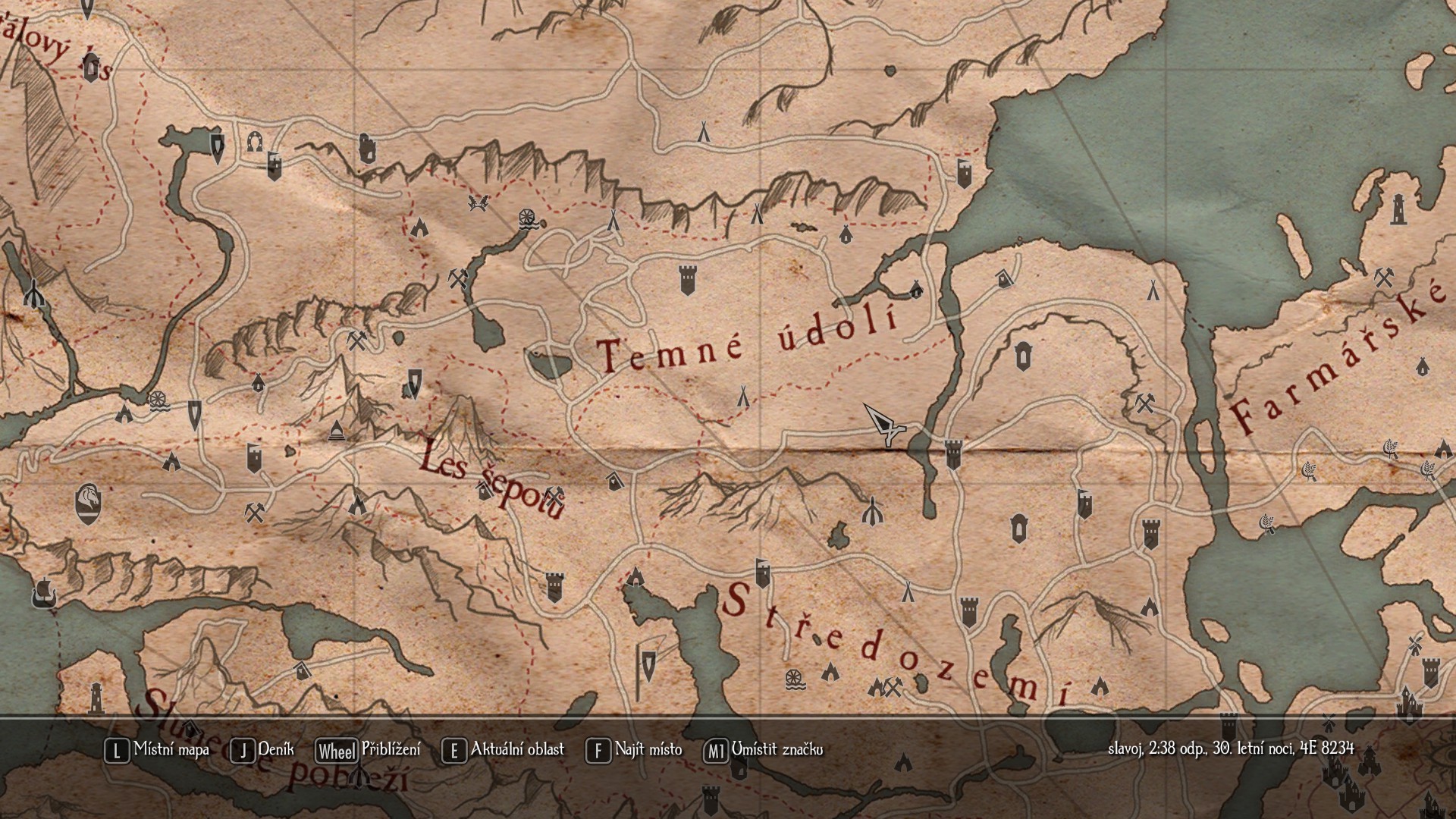
localization = the translation and adaptation of a game into a given language so that the translation feels natural to players and aligns with local customs and culture. Localization therefore includes not only the translation itself but also, for example, converting units, using slang and colloquial language where appropriate, translating names of places and characters, and so on.
Last edited on November 9th, 2025
Created on March 20th, 2025

(The English version of this article can be found here.)
Enderal: Forgotten Stories, dříve známý jako Enderal: Shards of Order, je mod pro hru Skyrim, často považovaný za vlastní, samostatnou hru díky svému nevídanému rozměru a kvalitě. Mezi roky 2020 a 2025 jsem lokalizoval1 Enderal do češtiny, a to jak klasický Enderal, tak fanouškovský port Enderalu pro Skyrim Special Edition.
Obsah
Co je lokalizováno
Téměř každý text ve hře, tedy například:
- názvy předmětů, kouzel, lokací, úkolů a postav,
- dialogy (v podobě titulků),
- většina knih,
- texty v texturách,
- nabídky a nastavení,
- videosekvence (v podobě titulků),
- systémové zprávy.
Co není lokalizováno
- Launcher,
- audio,
- knižní série „The Butcher of Ark“ (česky Arkský řezník).
Poznámka: Pokud se rozhodnete hrát za ženskou postavu, hra vás bude stále oslovovat v mužském rodě, protože jsem dosud nenašel způsob, jak mít pro mužské a ženské hlavní postavy odlišné sady textů.
Motivace
Už od chvíle, kdy jsem poprvé hrál Enderal a zjistil, že mu chybí česká lokalizace, věděl jsem, že je to něco, co bych chtěl uskutečnit. Mou hlavní motivací je zpřístupnit příběh, prostředí i všechny ostatní prvky Enderalu lidem, kteří neovládají angličtinu nebo jednoduše preferují češtinu.
Proces lokalizace
Herní textové řetězce jsem lokalizoval v programu xTranslator a textury upravil v programu Photopea. Herní videosekvence jsem lokalizoval „zapečením“ titulků do videa. O tomto „zapečení“ jsem napsal anglický návod, ve kterém popisuji přesný postup, jejž jsem při lokalizaci videosekvencí použil.
Více informací o procesu lokalizace najdete na stránce Enderal:Localization.
Stažení
Lokalizaci lze stáhnout na Nexus Mods, kam jsem ji se souhlasem vývojářů nahrál. Nexus Mods je zároveň ideální pro nahlašování chyb a potíží, proto tam neváhejte napsat, pokud narazíte na nějaký problém.
Lokalizace pro klasický Enderal (Classic Edition): https://www.nexusmods.com/enderal/mods/327
Lokalizace pro Enderal SE (Special Edition): https://www.nexusmods.com/enderalspecialedition/mods/996
Zároveň jsem v kontaktu s vývojáři, kteří podotkli, že oficiální vydání lokalizace na Steamu sice není pravděpodobné, ale zcela ho nevyloučili.
Ukázka
Video ukázka
Galerie
lokalizace = překlad a přizpůsobení hry danému jazyku tak, aby byl překlad pro hráče přirozený a odpovídal místním zvyklostem a kultuře (lokalizace tedy kromě samotného překladu zahrnuje například také převádění jednotek, užívání slangu a hovorového jazyka ve vhodných situacích, překlad názvů míst a postav atd.)
Naposledy aktualizováno 9.11.2025
Vytvořeno 20.3.2025

Bezierve is a tool for extracting information about a Bézier curve from an image, such as its corresponding formulae, positions of extremum points and more.
Development
I developed the program in Python's library Tkinter in 2023. Upon releasing version 1.0, I posted a video about Bezierve on my YouTube channel. Since then, I have developed version 2.0 which fixes many issues I had with version 1.0 and also adds new features.
Version 1.0
To get an image of what Bezierve's premise is and what features it offers, you can watch the YouTube video I made about it.
New with version 2.0
- Cleaner UI
- Option to add more than one Bézier curve (either linear, quadratic or cubic)
- Option to save the current configuration of curves as a savefile and load it later
- Option to change curve's color
- Option to show the curve's bounding box (technically known as its axis-aligned minimum bounding rectangle)
- Formulae no longer produce horizontally flipped curves when used outside Bezierve, an issue present in version 1.0
- Completely restructured code to follow a proper OOP design
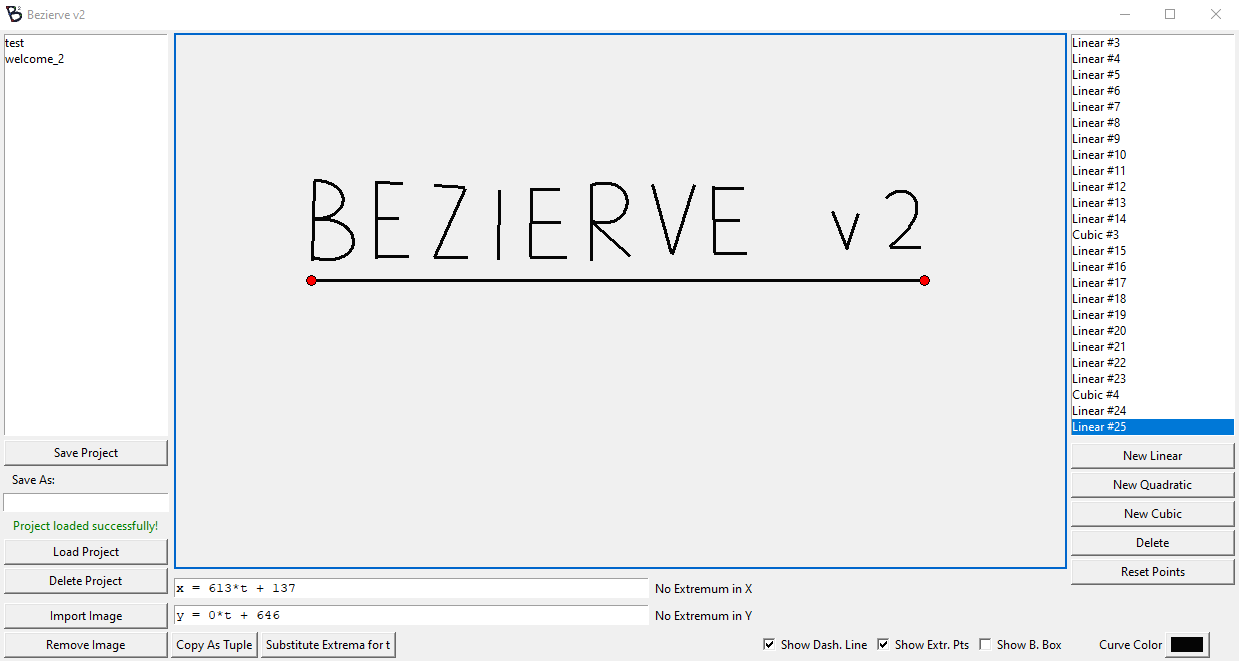
You can see the version 2.0's new UI here:
Created on March 20th, 2025

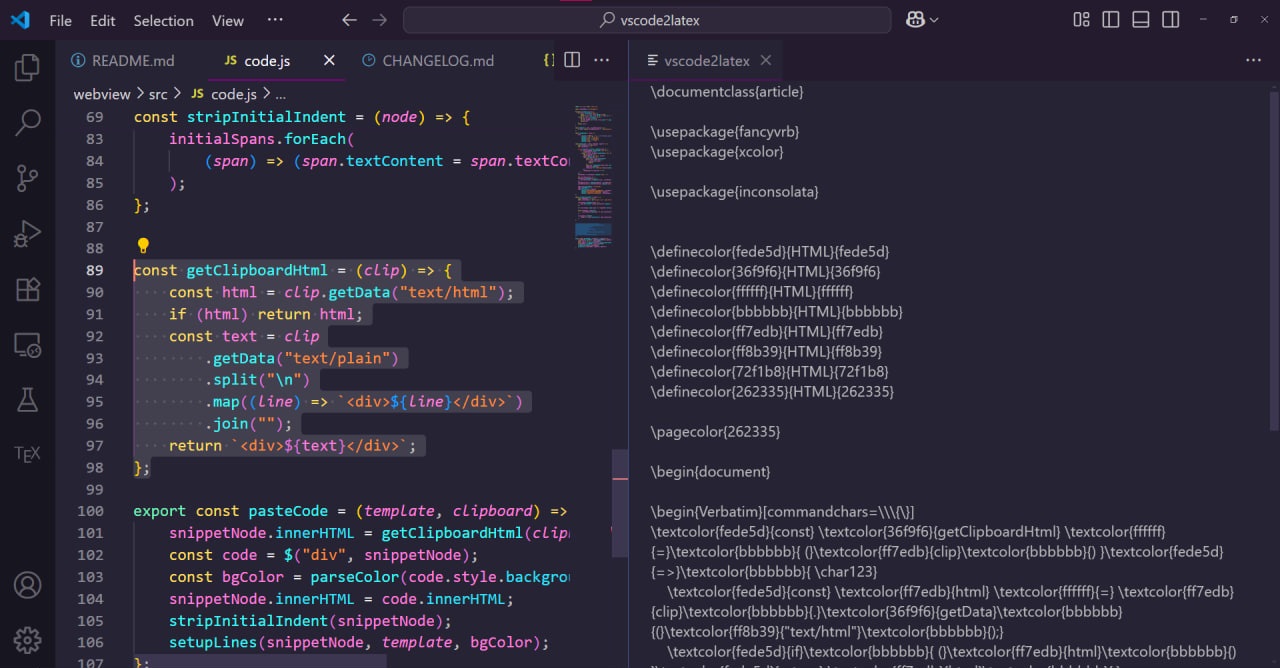
vscode2latex is a VS Code extension that converts selected code into a LaTeX file, preserving VS Code’s syntax highlighting and colors using a default or custom template. You can find it on the VS Code Marketplace.
Development
The initial version of this extension relied on a Python script running externally on the client’s device, requiring the installation of several non-standard libraries. To improve usability and remove these dependencies, I sought a solution that did not rely on Python.
Although my experience with JavaScript was limited and no straightforward approach was apparent, I discovered the CodeSnap extension, which offers similar functionality. Leveraging its codebase enabled the development of version 2.0, which runs purely on JS.
Special thanks to the author(s) of CodeSnap for their invaluable contribution.
Use
- Download the extension from the VS Code Marketplace
- Select code that is syntax-highlighted
- Open the Command Palette (default shortcut: F1)
- Run the
vscode2latex: Convert Code to LaTeXcommand - Copy the generated LaTeX code from the sidebar
Template
By default, the extension uses this .tex template. You can use your own custom template by setting the vscode2latex.templateFilepath setting to your custom filepath. Be sure to include these placeholders:
VERBATIM_PLACEHOLDER: The formatted code with\textcolorcommands will be inserted here.DEFINITIONS_PLACEHOLDER: The color definitions with\definecolorcommands will be inserted here.BG_COLOR_PLACEHOLDER: The background color’s hex code (without #) will be inserted here.
Changelog
Updates to this extension are documented in a changelog which can be found here.
Showcase
Created on June 30th, 2025
Burning subtitles into a Bink Video File (.bik)
While working on the Czech localization of Enderal: Forgotten Stories, I needed to burn subtitles into a .bik video. Upon realizing there isn't a guide on how to do this on the internet yet, I decided to write this article. Note that there may be other, simpler methods. Also, this guide is for Windows users; however, with some adjustments, it should still be possible on other operating systems.
Note: It might be a good idea to backup your input files just in case.
Goal
Input files
.bikvideo file.srtor.txtsubtitle file
Output file
.bikvideo file with subtitles burned into it
Required programs
- FFmpeg (Install via this article, tested version 2023-05-31)
- Optional: VLC Media Player (Download here, tested version 3.0.18)
- RAD Video Tools (Download here - Mind the password, tested version 2025.01)
Process Overview
- Convert
.bikto.mp4using FFmpeg - Generate
.wavfrom.mp4using FFmpeg - Convert
.srtor.txtto.assusing FFmpeg - Optional: Configure
.assformatting - Burn
.assinto.mp4using FFmpeg - Convert
.mp4to.bikusing Rad Video Tools (with sound compression turned off) - Add sound from
.wavto.bikusing Rad Video Tools
Detailed Guide
0. Prepare files
To make the process easier, put both the initial .bik video file and the .srt or .txt subtitle file in one folder together.
1. Convert .bik to .mp4 using FFmpeg
To convert a Bink Video File (.bik) to .mp4, we will use FFmpeg. First, open the Command Prompt and navigate to the directory where your input files are located using the cd command. For example:
cd "C:\Program Files\" (or D: and then cd "D:\Program Files\" if navigating to a different drive)
You can then convert the .bik video file using:
ffmpeg -i "input.bik" -c:v libx264 -preset fast -crf 23 -c:a aac "input.mp4"
(replace input.bik with the name of your .bik file)
Setting the crf value (default = 23) lower will make the output .mp4 video higher quality at the expense of its size (0 = lossless but largest file size).
2. Generate .wav from .mp4 using FFmpeg
You will also need a .wav sound file for later. You can generate it from the .mp4 you just created using:
ffmpeg -i "input.mp4" -acodec pcm_s16le -ar 44100 -ac 2 "output.wav"
3. Convert .srt or .txt to .ass using FFmpeg
Next, you will need to convert your subtitle file to an .ass file. Note that this subtitle file should already be filled and in accordance with the SubRip file format.
For an .srt file, the command will be ffmpeg -i "input.srt" "output.ass"
(replace input.srt with the name of your .srt file)
For an .txt file, the command will be ffmpeg -i "input.txt" "output.ass"
(replace input.txt with the name of your .txt file)
4. Optional: Configure .ass formatting
The .ass subtitle format supports a wide range of customization. You can edit the subtitles directly in Notepad and preview them in the VLC Media Player.
5. Burn .ass into .mp4 using FFmpeg
If your .ass subtitles are ready to be burned into your video, you can do so using this command:
ffmpeg -i "input.mp4" -vf "ass=output.ass" "output.mp4"
Note that this step may take up to several minutes.
6. Convert .mp4 to .bik using Rad Video Tools (with sound compression turned off)
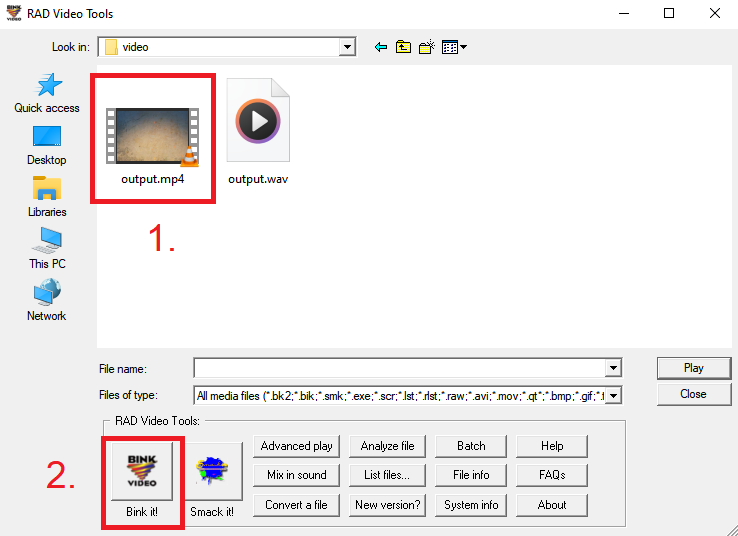
After you extract the .7z file using the password and installing Rad Video Tools, open it and navigate to your directory inside the program. Then, select output.mp4 and press Bink it!, as shown in the image below:
In the new window, make sure that the Bink 1 file format (AKA .bik) is selected and that the Compress audio checkbox is unchecked (When left checked, the generated .bik file will have just static noise instead of the original audio, not sure why this is). After that, press Bink, as shown in the image below:
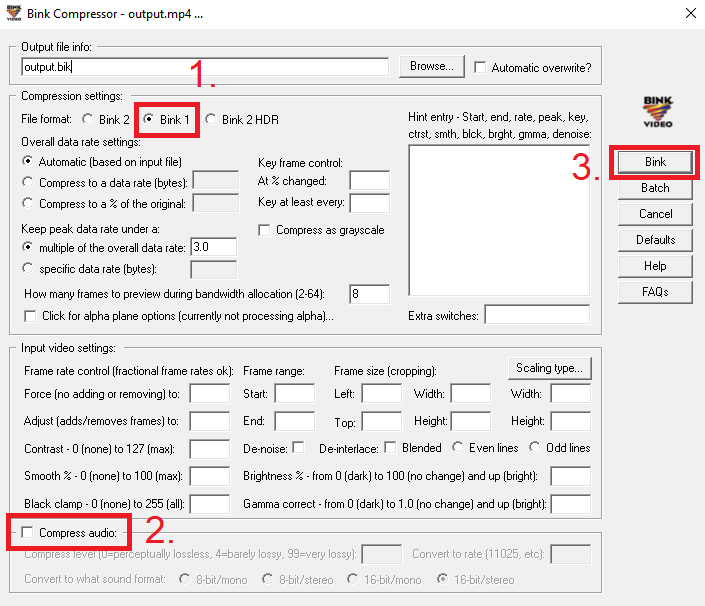
Note that this step may take up to several tens of minutes or even hours if the video is especially long (> 10 min).
After the compression is finished, close all RAD Video Tools windows.
7. Add sound from .wav to .bik using Rad Video Tools
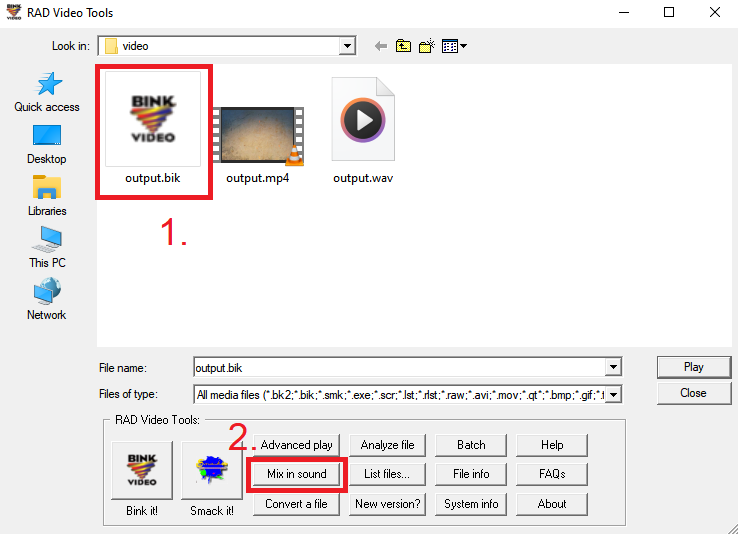
Now, open RAD Video Tools once again and navigate to your directory inside the program. Here, select the newly generated output.bik and click Mix in sound, as shown in the image below:
In the new window, click Browse, navigate to your directory and select output.wav. After that, press Mix, as shown in the image below:
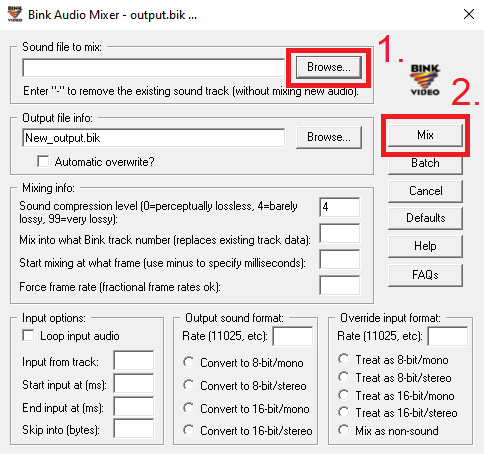
You can also adjust the Sound compression level to reduce file size or improve audio quality, depending on your needs.
After the sound mixing finishes, close all RAD Video Tools windows.
Conclusion
You should now be left with a file called New_output.bik in your directory. RAD Video Tools also provides a Bink Video File player, so you can check if the process was successful.
Created on March 20th, 2025